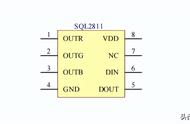
这是我设计的电路图。看可能看起来很复杂,其实它只有4个传感器,每个传感器有4根电线,还有LED灯条。

我选择在传感器周围制作一个带有脉冲LED的橙色中心点,用于测量最近的物体。当然,既然你都有了传感器和基本代码,你可以做一些完全不同的事情。
需要注意:
使用 Adafruit NeoPixel 库,确保安装正确。
传感器的确切顺序及它们的针脚顺序。
调整相框使用的总像素数。
根据需要调整颜色。
在代码中配置好“角”所在的位置,它们是盒子每一侧的中心点。
#include <Adafruit_NeoPixel.h>
const int NUMPIXELS = 26;
Adafruit_NeoPixel pixels = Adafruit_NeoPixel(NUMPIXELS, 10);
const int NUMPIXELS = 26;
Adafruit_NeoPixel pixels = Adafruit_NeoPixel(NUMPIXELS, 10);
const int topTrigPin = 2;
const int topEchoPin = 3;
const int leftTrigPin = 4;
const int leftEchoPin = 5;
const int botTrigPin = 6;
const int botEchoPin = 7;
const int rightTrigPin = 8;
const int rightEchoPin = 9;
void setup() {
Serial.begin(9600);
pixels.begin();
}
int corners[4] = {16, 23, 3, 10};
int focusPoint = 20;
int focusMoveTo = 20;
int rainbow = 0;
uint32_t rainbowColor = Wheel(0);
unsigned long previousMillis = 0;
void loop() {
unsigned long currentMillis = millis();
if (currentMillis - previousMillis >= 500) {
previousMillis = currentMillis;
long top = readSensor(topTrigPin, topEchoPin);
long left = readSensor(leftTrigPin, leftEchoPin);
long bot = readSensor(botTrigPin, botEchoPin);
long right = readSensor(rightTrigPin, rightEchoPin);
Serial.print("t:");
Serial.print(top);
Serial.print("l:");
Serial.print(left);
Serial.print("b:");
Serial.print(bot);
Serial.print("r:");
Serial.println(right);
rainbowColor = (Wheel((rainbow) & 255));
rainbow = (rainbow   1) % 255;
if (top < left && top < bot && top < right ) {
// move to top
focusMoveTo = corners[0];
} else if (left < top && left < bot && left < right) {
// move to left
focusMoveTo = corners[1];
} else if (bot < top && bot < left && bot < right ) {
// move to bot
focusMoveTo = corners[2];
} else if ( right < top && right < left && right < bot ) {
// move to right
focusMoveTo = corners[3];
}
}
if (focusPoint != focusMoveTo) {
if (focusPoint > focusMoveTo) {
focusPoint--;
} else {
focusPoint  ;
}
}
bounceAround(focusPoint);
delay(30);
}
int pos = 0;
long readSensor(int trigPin, int echoPin) {
pos  ;
if (pos == 5) {
pos = 0;
}
return pos;
pinMode(trigPin, OUTPUT);
pinMode(echoPin, INPUT);
long duration, cm;
digitalWrite(trigPin, LOW);
delayMicroseconds(2);
digitalWrite(trigPin, HIGH);
delayMicroseconds(10);
digitalWrite(trigPin, LOW);
duration = pulseIn(echoPin, HIGH);
return microsecondsToCentimeters(duration);
}
long microsecondsToCentimeters(long microseconds)
{
return microseconds/29/2; // to convert time into distance
//The speed of sound is 340m/s or 29 microseconds per centimeter.
//the ping travels out and back so distance from the obstacle is half of the distance travelled
}
int bounceSize = 5;
int bounceSizeMax = 5;
int bounceDirection = 1;
void bounceAround(int point) {
setAll(rainbowColor);
if (bounceSize <= 0) {
bounceDirection = 1;
} if (bounceSize >= bounceSizeMax) {
bounceDirection = -1;
}
bounceSize  = bounceDirection;
pixels.setPixelColor(point, pixels.Color(0,250,0));
for(int i = 1; i <= bounceSize; i   ){
pixels.setPixelColor(point - i, pixels.Color(40*i,40*i,40*i));
pixels.setPixelColor(point   i, pixels.Color(40*i,40*i,40*i));
}
showStrip();
}
void showStrip() {
pixels.show();
}
void setAll(uint32_t color) {
for(int i = 0; i < NUMPIXELS; i   ) {
pixels.setPixelColor(i, color);
}
}
void setAll(byte red, byte green, byte blue) {
for(int i = 0; i < NUMPIXELS; i   ) {
pixels.setPixelColor(i, red, green, blue);
}
}
// Input a value 0 to 255 to get a color value.
// The colours are a transition r - g - b - back to r.
uint32_t Wheel(byte WheelPos) {
WheelPos = 255 - WheelPos;
if(WheelPos < 85) {
return pixels.Color(255 - WheelPos * 3, 0, WheelPos * 3);
}
if(WheelPos < 170) {
WheelPos -= 85;
return pixels.Color(0, WheelPos * 3, 255 - WheelPos * 3);
}
WheelPos -= 170;
return pixels.Color(WheelPos * 3, 255 - WheelPos * 3, 0);
}
3D打印支架和安装电池

由于背面的 Arduino 和电池不适合贴在墙上,所以我设计一个简单的3D打印支架。我的版本经过4次修改。底部配有超声波传感器的安装空间,同时可以紧紧固定相框。